
JLR SDD V168 is the latest Jaguar & Land Rover diagnostic software released on July 2025.It is best ideal for technicians who want advanced functions like fault diagnostics, service resets, module programming, and configuration.
Compare with older version V165 , The V168 SDD have been improved performance and support download files from server for Programming and coding.it also fixed the issues on Edge.
Coverage:
- Jaguar: approx. 2008–2017
- Land Rover / Range Rover: approx. 2000–2017
- For 2017+ vehicles with DoIP, use Pathfinder and Topix Cloud
JLR SDD V168 Requirements:
- OS: Windows 10 / 11 (64-bit) – admin rights required.
- CPU/RAM: Intel i5 or better, 8 GB RAM.
- Storage: ≥ 50 GB free space on Drive C.
- Interface:compatible with most pass-thru J2534 Interface.
This post will help you download /install SDD V168:
- Download newest installater SDD 168.00.001 from offical
- Download the SDD Patch
- Run VCredist all-in-one FIRST before anything.
- Once downloaded, run the SDD V168 installer. The program will automatically remove the older version and set up V168 for immediate use.
- Run OFFLINE.exe patch
- Run JLR SDD, then login using Username : y-cai1,Password : apri12012
- Exit SDD.
- Run Offline.Fix.2020.7.14.exe patch
- Restart PC – run SDD and use as normal. – you may have to go to Settings > Network > and enable network connection to get online downloads working.The network icon may be red, but downloads should still be working.
- Here you watch the installation video
JLR SDD V168 reviews :
- Tested on Windows 11 and Windows 10 – working no issues.
- Legacy applications working better now unlike v165/166
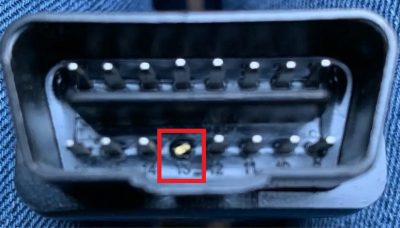
- I tested it yesterday on a Jaguar XE 2016 with a cloned Mongoose Cable (after removing PIN 13).When you connect the cable, it starts to receive different errors, and some modules are not showing. Removing pin 13 helped resolve these issues for me. It seems to affect communication with certain modules, which is why some errors were popping up before removing it
Works fine configuring new module.
- Used yesterday XF bcm worked fine. Make sure your BCM is virgin properly.
- working fine XF tcm new download files with vnci vcm3 .
- Did a key on an evoque this morning, everything is back working.
- Back up and running. Done a load of programming today.
- connect sdd to the servers now,but nobody knows when and if they will blocked again

Questions:
Q1:Wifi connection shows good but no connection to corporate server. Attempting to add keys but cannot update KVM due to no connection to download update files?
A1 :For the moment you have nothing to do because their servers are down for a while.All you have to do is to check it from time to time.
Q2:Can you share the instructions for adding smart keys? I have a 2009 XF ,Thank you.
A2:You can use aftermarket keys – just go to service functions – add smart key. It walks you through procedure of key presses on fob.
Q3:Why it always show wrong user/password when login SDD ?
A3:that almost your patch not working,try do as below steps:
- If Windows x64, run cmd (command prompt as administrator) and enter: mklink /D “C:\Program Files\JLR” “C:\Program Files (x86)\JLR”
- Run patch.bat as administrator for Windows 7 or it via CMD as administrator for Windows 10-11.
- Edit C:\Program Files\JLR\SDD\SDD\app.properties and C:\Program Files\JLR\IDS\SDD\app.properties and add the following lines to the end of the file:
sdd.authentication.topix.address = http: //asdaswq.re
sdd.windows10.enabled = true
sdd.ie11.enabled = true - Launch jlr sdd from desktop
- Restart Edge in Internet Explorer mode
- The window shows that the topic is unavailable. Click “Continue”
- Paste any username and continue
Leave A Comment